How to use Paso
At a glance
- Ask any time: DESK
- Materials and guides: Documents, Library, Guides
- Capital: Global Accelerator Deadline Calendar
- Account and connections: Connect your AI
Welcome
Welcome to Paso. We are glad to be working with you. Your Paso team has prepared a portal for your venture: one place for what is next, what has been shared, and the people doing the work alongside you.
Getting in
Open the link in your invitation. You can also go to bypaso.com/my and enter the access code from that same email. If you see “Your surfaces”, choose your venture’s portal. If the link will not open, tell your Paso team in your group chat. We will let you in.
Where things are
These instructions describe the beta portal in English; available tools depend on your venture and what has been shared.
DESK: Ask a question or share an update with Paso.
Three cards keep the essentials in view. TO-DO lists the next items for you, first things first. CALENDAR shows recorded dates and may be empty. PROGRESS may show time windows before targets or measurements have been set.
The tool icons open the rest.
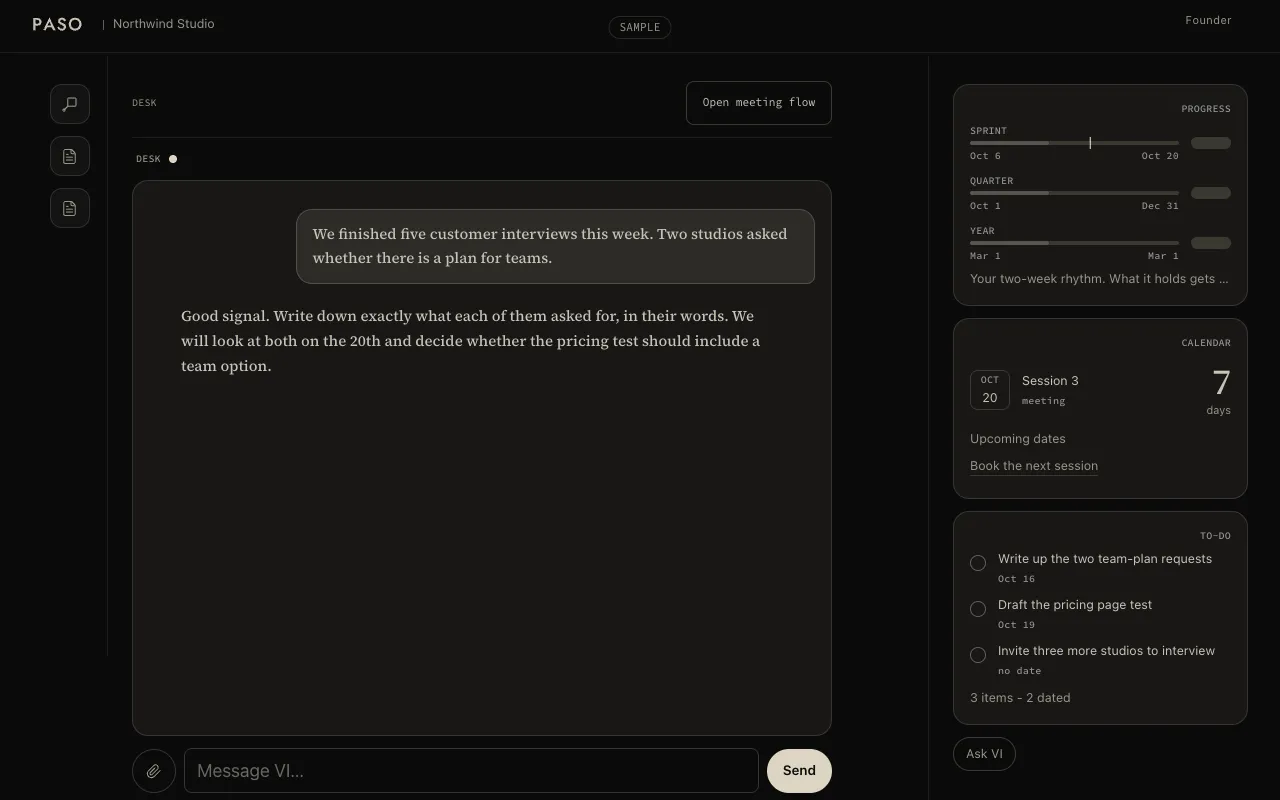
Documents: Read the pages your Paso team has shared with you. Documents appears when pages are available to you.
Library: Read Paso’s guides and methods. A members guide may ask you to sign in first.
Model (BM9) appears when enabled.
How we work together
Your Paso team writes to you in your group chat, on iMessage or WhatsApp. That is where the conversation lives. Sessions we arrange appear on your CALENDAR. Shared documents appear under Documents. Between sessions, when something comes up, ask in DESK or in the group chat. A good first question is one of these: What should I do in the next two weeks? How do I run my first customer interviews? What does Paso already know about my venture?
When you forget something
Forgot a term? Open the Glossary, or ask your own Claude or ChatGPT.
Connect your AI: Read Paso’s cleared pages and guides from your own assistant. Sign in to your portal to connect it.
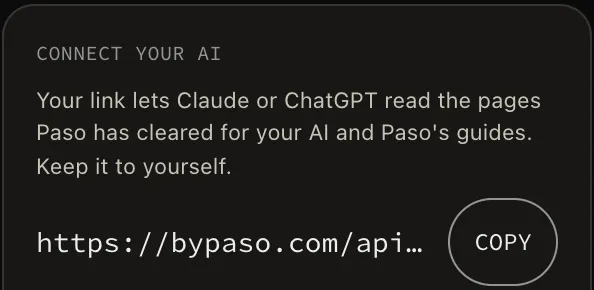
Your own assistant can read only the pages and action items Paso has cleared for it, plus Paso’s guides and glossary. It cannot change them. Its answers come from your assistant. Keep your connection link private: anyone holding it can read what it grants access to. If “Connect your AI” is missing, contact your Paso team.
Under “Connect your AI”, choose Copy, then:
Claude
- In Claude, open Customize, then Connectors, then Add custom connector.
- Name it Paso, paste your link and choose No sign in.
- In a chat, choose +, then Connectors, turn on Paso and ask your question.
ChatGPT
- In ChatGPT, open Settings, then Apps & Connectors, then Advanced settings, and turn on Developer mode.
- Back in Apps & Connectors, choose Create, name it Paso, paste your link as the MCP server URL and choose No authentication.
- In a chat, add Paso from the tools menu and ask your question.
If something does not work
Tell your Paso team in your group chat: a link that will not open, a page you expected but cannot find, or anything that looks wrong. You do not need to work out what happened first. That part is ours.
Your Paso team
Everything in your portal leads back to the people working on your venture with you.